
Free help: USER GUIDE

Home > Clients & Profits X User Guide > My > My Daily Time Card

|
Clients & Profits X Online User Guide |

Everyone can track their daily hours using the built-in time card.
It keeps a daily record of the jobs and tasks
on which you work. You can enter billable and unbillable time
for any client, including agency time (i.e., meetings, vacations,
etc.). Time entries are added throughout the day as you work.
Time is entered in numbers (e.g., 2.75 hours) and not in minutes (e.g., 35
minutes). Cost and billing rates are applied automatically when the time card
is saved; they can’t be seen or changed on the time card. To save time,
the job’s traffic and schedule details can be updated when entering your
hours.
Billable time, unbillable time, and overtime
Any time entry on a time card can be billable, unbillable, or overtime. Billable
time will have a cost rate and a billing rate. Unbillable time will have a
cost rate only -- the billing rate will be zero. Billing rates are copied to
the time card when it is saved, based on the staff member, the client, and
the task. A time entry always gets its cost rate from the Staff record. The
billing rate is copied from the staff, task, or client file depending on how
the job is set up. Overtime has its own staff-based cost and billing rates.
All time, even if it is unbillable, updates jobs and tasks.
To use your time card
1 Choose My > Time Card.
Your time card opens, listing the time you’ve entered already today. The
window has toolbar buttons for browsing between days as well as finding a particular
day. The day's hours are listed by the order in which they were added. Each
time entry displays its job number, task, hours, description and a checkbox
indicating overtime.
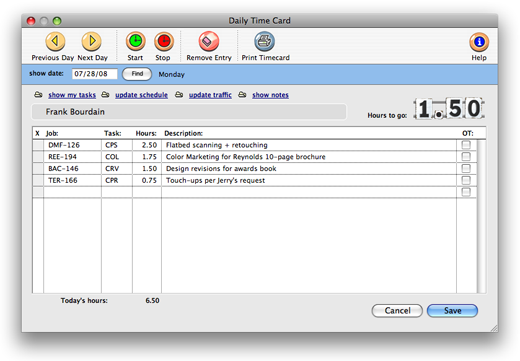
You can add new hours onto an existing time card by clicking inside the job
number after the last time entry. A time card can have an unlimited number
of entries for each day (up to 24 hours). The "hours to go" digital display
counts down the number of hours you need to account for based on your planned hours for each day. Time can be entered manually at any time during the
day, or the time card can automatically track how long you work using the stopwatch
(see below)
2 Enter the job number, task, hours, and a brief description
of the time entry, then press Tab to enter another time entry.
If you're unsure of the job number you're adding time for, click inside of the job number field and press the tab key. The jobs list will open, allowing you to select the job you wish to add time for. Double-clicking on the job number will enter it into the job number field and close the jobs list automatically.
3 Click Save to save these new time entries.
To use the time card's stopwatch
The time card has a stopwatch that can track your time on a project while you’re
working. The stopwatch works by remembering when you’ve clicked the “start” and “stop” buttons
for a selected job and task on the Time Card. To use the stopwatch function,
you first need to enter a job and task. Make sure that either the job or task
is selected, then click the “start” button to start the clock. Later,
click on the same job and task again then click the “stop” button
to stop the clock. The elapsed time will be calculated and entered for you.
The stopwatch isn’t especially intelligent, so it doesn’t know when you’re taking a break or on the telephone. And it’s not clairvoyant, so it won’t know that you’ve finished one task and started another.
The stopwatch is just a shortcut, so it doesn’t dictate how your time is spent. You can still change the time worked on a job and task by changing the hours -- replacing the hours entered on the time card. There’s no problem if you forget to stop the clock -- there just won’t be any hours entered automatically for that job and task. There’s nothing to prevent you from timing several jobs and tasks at once.
To edit an entry on your time card
1 Choose My > Time Card.
2 Find the day on which the time entry was added, then click anywhere on a time entry to select it.
3 Change the entry's job, task, hours, or description as needed.
4 Click Save to save your changes.
To delete a time entry
Time entries can't be deleted from the time card. For better accountability, they can only be deleted from Time Sheets and only if you have the access privileges to delete time entries. Individual time entries can be deleted from the Time Sheets window until they are billed.
To find a different day's time card
1 Choose My > My Time Card.
2 Enter a work date into the Find field then click the find button.
To enter time for a different day
1 Choose My > My Time Card.
2 Click the Next or previous buttons to find the desired day’s time card.
3 Enter the time entry’s job, task, hours, etc. then click Save.
To update a job's traffic information from your time card
1 Choose My > My Time Card.
2 Enter a job and task, then click on the show traffic link or show schedule link.
Updating job schedules Job traffic and task schedules can be updated while a user enters his or her time. These changes update traffic reports instantly. |
Clicking on the Traffic button opens the Update Traffic window, where you can change the job’s production status, billing status, milestones, and traffic notes. Clicking on the Schedule button opens the Update Task Schedule window, where you can change the task’s due date, resource, start date, status, production specs, and mark the task as finished. The changes you make to the job schedule and traffic are saved immediately.

|
|

|
Learn more about adding time entries through time cards
in this Clients & Profits classroom video training
session. Running time: 5:11 |
|
|
|
 Comments (7)
Sort by:
Most Recent
|
Oldest
Hello: In a past incarnation of C&P Classic, when adding a time entry there was an option to include the time entry as a diary note entry on the job ticket. I cant tell you how helpful that feature was. It’s been gone for some time now. Could be brought back?
I always found it to work well, so it was not a problematic feature in terms of programming. Thanks for considering it. Anything that helps recording job activity is a plus in our studio.
How do you log time for proposals in C&P X?
Brittany, you can add time and just make it unbillable (no gross amount on it). Or you can add a non-billable task to the job and add time for the work you did on the proposal.
If you don’t want the costs on the job either, another option is to add it to an overhead job.
How can I duplicate a time sheet or create a template so I dont have to load job numbers each time? Thanks in advance
BB,
You can clone a time sheet. When you do this, it automatically brings in the jobs & tasks from the time sheet you’ve cloned. However, if you use scheduling, you can use the “show my tasks” link and it will bring only your jobs and task assignments. From there, you can just add time to the jobs you’ve worked on.
Thanks much Phil, but how do you actually clone a time sheet? I can find the action to do that. Thanks again
Hi BB,
To clone a time sheet, find a time sheet you wish to clone, then simply click the clone button. You can customize the dates, tasks, jobs, etc, and save it for today. The only catch is that you cannot clone any time sheets from today. They must be time sheets from days past.
 © 2011 Clients & Profits, Inc. w e l o v e a d v e r t i s i n g
