
Free help: USER GUIDE

Home > Clients & Profits X User Guide > Setup > Staff Availability

|
Clients & Profits X Online User Guide |

The Staff Availability function lets users schedule themselves as unavailable for any day, morning, or afternoon for up to twelve months in advance
When a user is scheduled for a job task, Clients & Profits checks their availability on the task’s due date. If the user is unavailable, the person scheduling the job is prompted to choose another person -- Clients & Profits X even proposes a backup person, which can be preset for each staff member.

|
|

|
Learn more about setting up staff availability and using scheduling subtasks
in this Clients & Profits classroom video training
session. Running time: 4:36 |
|
|
|
To add an entry to the user’s availability calendar
1 From the Staff window, click the availability button.
The Staff Availability window opens.
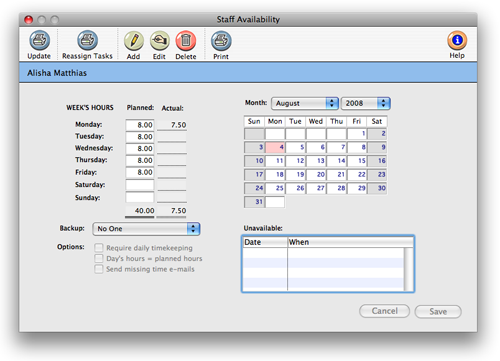
2 Select the date you wish to make an availibility entry for.
3 Click the Add button. The user can be marked unavailable for the morning, afternoon, or the entire day.
4 Select any or all options you wish to use.
Require daily timekeeping
Select this option if you wish to require that time be entered by this staff member before being able to quit Clients & Profits.
Day's hours = planned hours
Selecting this option will require that time entered should equal this staffers planned hours before bing able to quit the program.
Send missing time e-mails
When this option is selected, a reminder email is sent to the staff member each morning reminding them if they had not entered enough time for the previous day. An email is also sent to the manager of their department. Use of this option requires that the staff member has an email address entered in their staff file, and that C&P Mail is configured correctly.
5 When you are finished making your changes, click Save.
| Pop-up availability alerts Each staff member can enter the days on which they’ll be unavailable, along with an optional note that explains why. When this staff member is scheduled for a job task, a pop-up alert will warn the scheduler that they aren’t available. When a staff member is no longer available for any reason, his or her work can be reassigned to another person. |
Enabling "TimeCop"
By checking the Require daily timekeeping checkbox in the staff availability window, you are in essence enabling TimeCop.
Each morning C&P TimeCop checks each staffer's previous day’s time card/time sheet, comparing their actual hours worked with their planned hours. Staffers who haven’t logged enough hours are notified by e-mail to finish yesterday’s time card and so is their supervisor.
In order to properly set up TimeCop, do the following:
1 Choose Preferences > C&P Mail. The Automatically Send Email checkbox must be checked.
2 Choose Setup > Staff. Click the Availability/Planned Hours link. Setup the necessary planned hours. The week's planned hours are used by Time Cop as the staffer's daily goal for the number of hours that need to be added each day.
-
The require daily timekeepingoption tells Clients & Profits to compare the staff member’s planned hours with their actual hours. (This checkbox must be checked.)
- The send missing time e-mailoption will send a reminder e-mail in the morning when the staffer did not enter in enough time for the previous day. (This checkbox must be checked.)
3 The days hours = planned hours option takes it a step further, not letting the user quit Clients & Profits X until they have added more hours to their time sheet or time card. When they add more time and save it, C&P will close. (This setting is not necessary for the Time Cop feature.)
Follow these steps for the remaining staffers you wish to use the C&P TimeCop feature for.
The next morning when the first person opens the database for the day, TimeCop emails are triggered. It's a good idea to alert your staff that when using the C&P TimeCop feature, the startup process takes a little longer as C&P is triggering the emails to be sent.
 Comments (1)
Sort by:
Most Recent
|
Oldest
Send missing time e-mails: the reminder email is ALSO sent to the manager of the department to which the staff member belongs.
 © 2011 Clients & Profits, Inc. w e l o v e a d v e r t i s i n g
