
Free help: USER GUIDE

Home > Clients & Profits X User Guide > Production > Add Purchase Order

|
Clients & Profits X Online User Guide |

Anything purchased from a vendor should be tracked with purchase orders.
They are essential for job costing,
since they allow a cost to be committed to a job
ticket before the vendor’s invoice is posted.
Anyone can add a purchase order if they have the
access privileges. A purchase order can be added
from any computer running Clients & Profits
X.
Adding the purchase order doesn’t have to be complicated, since everything
about a PO doesn’t have to be entered. Instead, all that a purchase order
needs is a number, an order date, a vendor, a job and task, and an amount.
The purchase order’s description, specifications, and options aren’t
required. This additional information can also be entered after the PO is saved.
A purchase order can
be printed many times, as needed.

|
|

|
Learn how to add purchase orders
in this Clients & Profits classroom video training
session. Running time: 5:27 |
|
|
|
To add a purchase order
1 From the Purchase Order window, click the add button
or choose Edit > Add Purchase Order.
The Add Purchase Order window opens.

2 Enter the purchase order number.
Purchase orders are numbered automatically based on the settings in the PO
preferences. If a purchase order is numbered when added, you’ll see its
number immediately. If POs are numbered when saved, the number will be blank
until you’ve saved the purchase order.
3 Enter the POs remaining details:
Use template The PO template
automates adding the same kind of orders by entering standard information
about a purchase order automatically. Selecting a template from
the pop-up menu copies its settings to this purchase order, instead
of having to type the information manually. Once the PO is saved,
its type can’t be changed.
Vendor Every purchase order is added for only one vendor.
The vendor name, address, and markup are copied to the purchase
order automatically from the vendor file, and appear on the printed
form.
Date, Due date, Description The order date is the date the
purchase order was added. Due date is the date on which the work
is to be delivered. The description can contain any kind of useful
information that explains what you’re ordering.
Job, Task The job and task are essential for accurate cost
accounting. A purchase order must have at least one job and task.
(It can be charged to many jobs by checking the charge to many
job tickets and tasks option, which is described in the To add
amounts to a purchase order.) Details from the job task, such as
the task’s markup and billable status, are copied to the purchase
order automatically.
If the purchase order is for a non-job purchase, such as overhead, enter NONE
as the job number. This tells the purchase order to ignore the task, markup,
and other job costing details.
Net Cost, Markup, Gross Net cost is the expected cost of
the work -- what you will eventually pay this vendor for their
work -- before commissions and markups. Markup is the percentage
(entered as 17.65, 25.00, etc.) amount that is added to the net
cost to calculate your gross amount. Gross is the amount your client
will later be billed for this work, including commissions and markups.
The vendor sees the net cost on the printed purchase order, not
the gross amount (except on media insertions, which show gross
amounts -- not net costs). Both the net cost and gross amounts
appear on the job ticket.
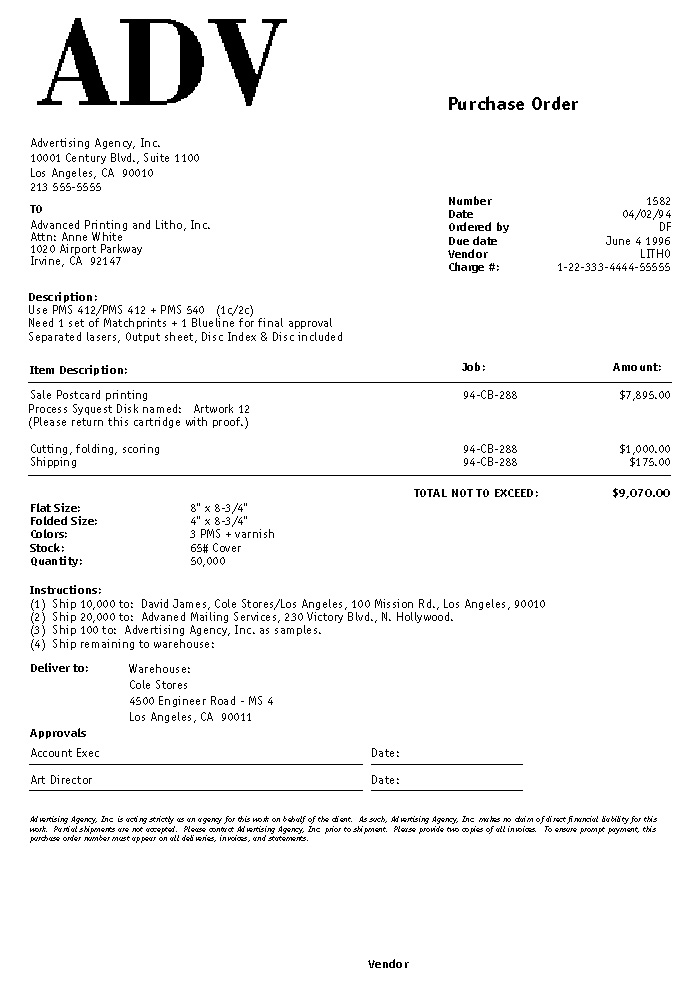
The amount you enter doesn’t have to be exact; instead, it can be the
most you’ll allow the vendor to charge. On the printed purchase order,
the line item amounts will be totaled. This total will appear at the bottom
of the purchase order to the right of the label Total Not to Exceed, (which
can be customized in Purchase Order Preferences).
Description The line item description appears in the body
of the purchase order. It should be used to briefly describe (in
50 letters or less) just what is being ordered. It will be copied
from the task description, but can be changed.
User defined fields User fields provide an easy way to include
specialized information about a purchase order. These fields are
completely customizable and appear on printed purchase orders.
Since the vendor sees these fields, they are ideal for describing
details such as print specifications (paper stock, inks, bindery,
etc.).
4 Click Save.
Saving the purchase order updates the job’s commitment totals. The PO’s
net cost increases the job task’s Net POs balance, while the PO’s
gross amount increases the job task’s Gross POs balance. An order can
be changed at any time before it is invoiced by the vendor or pre-billed to
the client.
 Comments (0)
 © 2011 Clients & Profits, Inc. w e l o v e a d v e r t i s i n g
