
Free help: USER GUIDE

Home > Clients & Profits X User Guide > My > Client Projects

|
Clients & Profits X Online User Guide |

It’s common for clients to track what they spend by project, program, or some other kind of category. When a new job is opened for a client, you can enter one of these codes into the project field. To keep your job tracking more consistent, you can establish a standard list of projects for each client.
Here’s how it works: A client project acts as an umbrella to tie a group of job tickets together. This makes finding, printing, and sorting jobs by project faster and easier. However, some set up is involved in order to get the most out of client project features in Clients & Profits.
When setting up Job Type/Spec Sheets and default estimate options, User Field 1 should be set to "Project." This gives client projects priority when adding new jobs for clients, and helps speed up the process of labeling the project the job ticket falls under. Choose
Client Projects from the Lookup menu to see a list of projects anywhere
you’re working. The word "project" is customizable as a system-wide preference. To rename the term 'project,' choose Preferences from the Setup menu, then select the option to change the Names preferences. You can enter any kind of term for "project" here (e.g., campaign). Once saved, the new term will appear everywhere -- on windows, menus, and reports -- in place of the word "project." Keep in mind, however, that the same project label applies to all clients.
When a job is added for a client, a
list of its projects opens. Double-clicking on a project name copies
it to the new job. Later, as costs and billings are posted, job reports
can be printed by project. You’ll be able to easily show your clients
how they spent their advertising dollars for this project without creating
a spreadsheet.
Each client account can have dozens of different projects. Projects are optional,
so you don’t have to set up project names for each client. Also, client
projects have no affect on the General Ledger.
To add a client project
1 Choose My > My Clients and find the client account.
2 Click the Client Projects link.
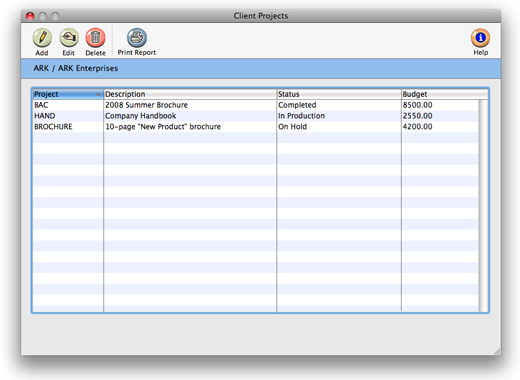
The Client Projects window opens, listing the names of the client’s projects.
Use the buttons in the window’s toolbar to add, edit, delete or print projects.
3 Click the add button.
4 Enter a project code, description, status, and budget.
All of the project’s fields are user-defined, however each project must
be unique. The code should be a nickname for the project, which the description
can fully explain. The optional status and budget can be shown on custom project
reports.
Unique naming conventions are helpful, as they make finding projects easier when adding to job tickets, or searching for a particular project. For instance, if a client had multiple grand openings for a store, naming them "Grand Opening - Arizona", "Grand Opening - California", "Grand Opening - Delaware", etc, would make searching alphabetically easier and faster.
5 Click Save.
The project is now ready to be used on new jobs, or added to old jobs. Because
projects are used for reporting purposes and don’t affect the job ticket
or G/L, the project field in Job Specifications is easy to change.
Whenever client projects are edited, changing the name of the client project will prompt you to rename the project on all of that project's jobs.
To look up client projects
The Client
Projects lookup list (choose Lookup > Client Projects) shows all
projects for all clients. Projects can be sorted by clicking on the column
headings. New projects can also be added from the Projects lookup list.
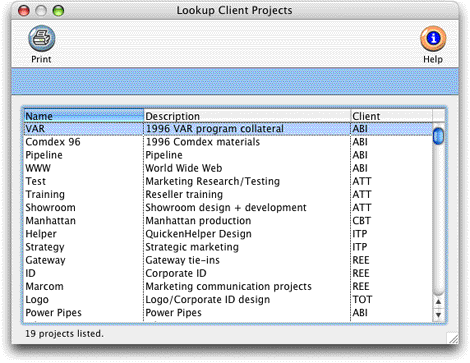
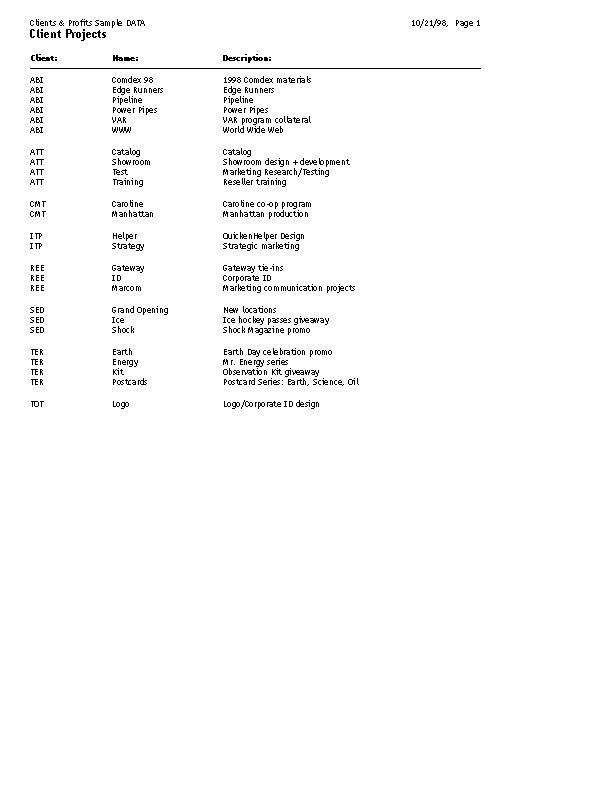
Client projects. Projects can be sorted by project name, description, status, and budget by clicking on the column headings. Clicking on the Sort Direction buttons reverse the sort order of the projects. To print a list of the client's projects, click the Print button. |
 Comments (0)

 © 2011 Clients & Profits, Inc. w e l o v e a d v e r t i s i n g
