
Free help: USER GUIDE

Home > Clients & Profits X User Guide > Accounting > Printing Time Reports

|
Clients & Profits X Online User Guide |

Time reports summarize hours from time cards and time sheets, showing where and how the staff spent their time.
They can be used to analyze time by job, client,
staffer, or task. Time can be summarized for any range of dates
(e.g., this week, last month, year-to-date, etc.) by work date
or date posted, for one period or all periods, and for one staffer
or all staff members. These options let you find the time for
a specific person, for example, to check their total hours.
Time entries are selected by work date or date posted using the pop-up
menu. You can also print time for only one accounting period by using
the period pop-up menu. This option lets you show only time added in
July, for example, in addition to the work dates.
The "Department Time Analysis by Task" groups time by department then task. The "Department Time Analysis by Job" groups time by department then by job. The "Payroll Time Analysis" summarizes staff hours for any task categorized in the Task Table as a "payroll" task. The "Profit Center Time Analysis" shows total staff hours for each of the profit centers they worked on, subtotaled by job task. The "Labor Transfer" summarizes staff hours for each profit center someone worked on outside the PC they are assigned to.
Tips for printing time reports
By entering a range of dates, you can select all time added today, last week, or all month -- whatever time period you need. There’s no limit to which range of dates you can use. n The summary reports are different because time list reports show day-to-day time in detail, while the summary reports show totals only.
So the time summary reports are much smaller (and probably easier to read) than the time list reports. But if you need the most detail, print time list reports instead.
You can print time reports to the window (for a quick on-screen preview), the printer (for a hard copy), or to disk (to create a text file that can be opened and edited in a spreadsheet).
To show the time entry notes, click on the show notes option. This option makes your time reports longer, but more descriptive.
Staff members with only access to daily or weekly time cards can now print their own time reports.
To print time reports
1 Choose Accounting > Time Sheets.
2 Click the print Reports button, or choose File > Print Time Reports.
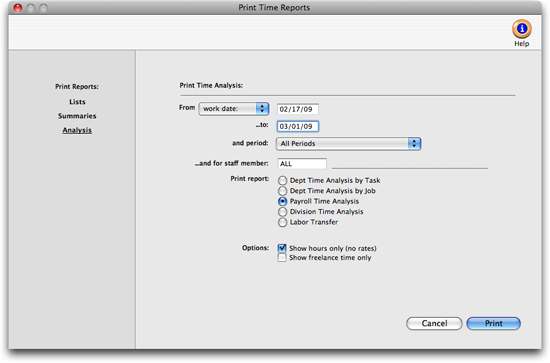
3 Select work date or date posted from the from pop-up menu, then enter a range of dates.
4 Select an accounting period, or choose All Periods to see time by date only.
5 Enter a staff member’s initials or leave the selection as ALL to select time for all staffers.
To see time for one accounting period only, regardless of date, choose a period from the pop-up menu then enter a very large range of dates (e.g., 1/1/09 - 12/31/09).
6 Click on a report then select the report’s options.
To show the time entry notes, click on the show notes option. To hide the rates on the time reports, click on the show hours only option. Use this option when printing time summaries for your staff members. They’ll see the hours but not the rates or dollar amounts. If you don’t have access to rates, this option will be checked automatically. Select to show freelance time only to have only the staff members marked as freelancers appear on the time report.
7 Click Print.
Time reports can be printed to the screen or to the printer. By using Print Destinations under the File menu, you can print to the computer's clipboard, export to a spreadsheet-compatible text file or disk, print in PDF or HTML format, or even e-mail your time reports. |
Time Reports |
|
Lists |
|
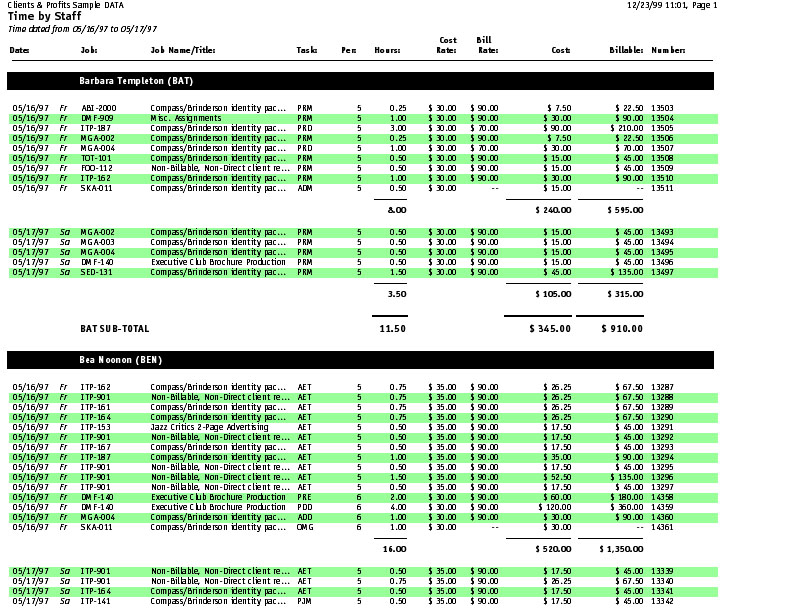
The Time by Staff report lists all time entries in detail, for a select period of time, and subtotals the entries by staff. |
|
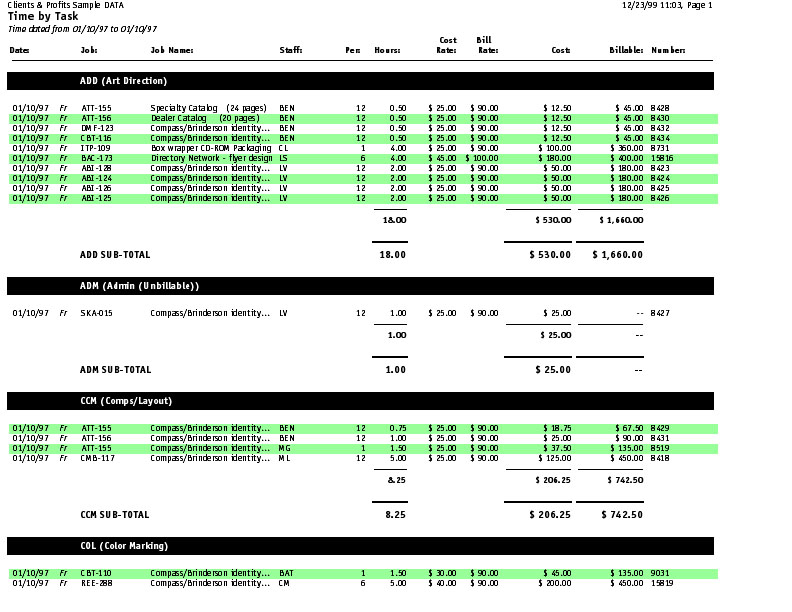
The Time by Task report lists all time entries in detail, for a select period of time, and subtotals the entries by task. |
|
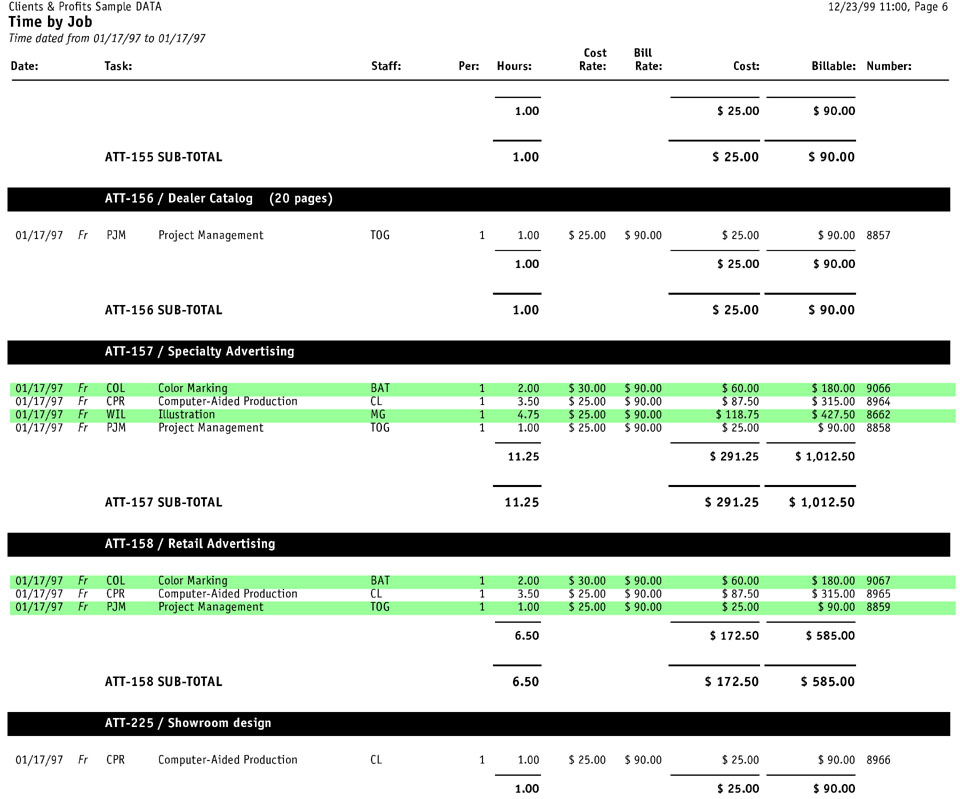
The Time by Job report lists all time entries in detail, for a select period of time, and subtotals the entries by job. |
|
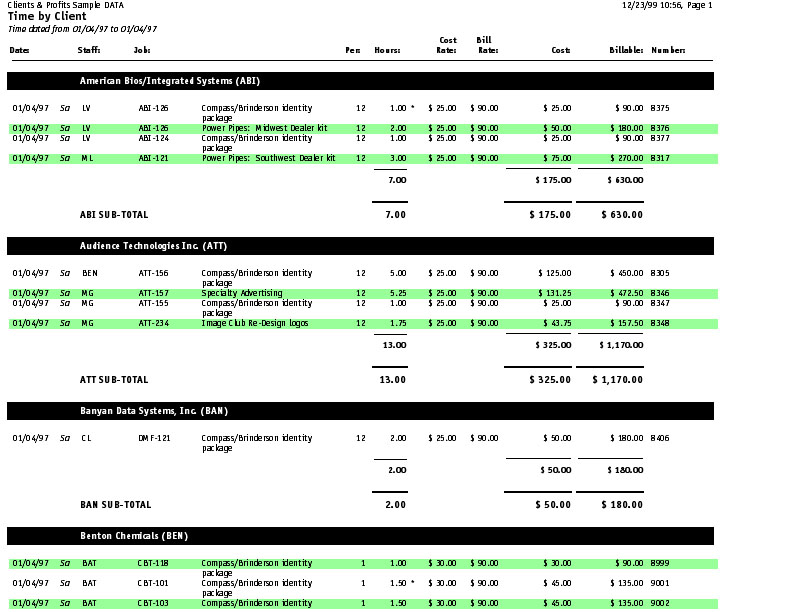
The Time by Client report lists all time entries in detail, for a select period of time, and subtotals the entries by date, then by client. |
|
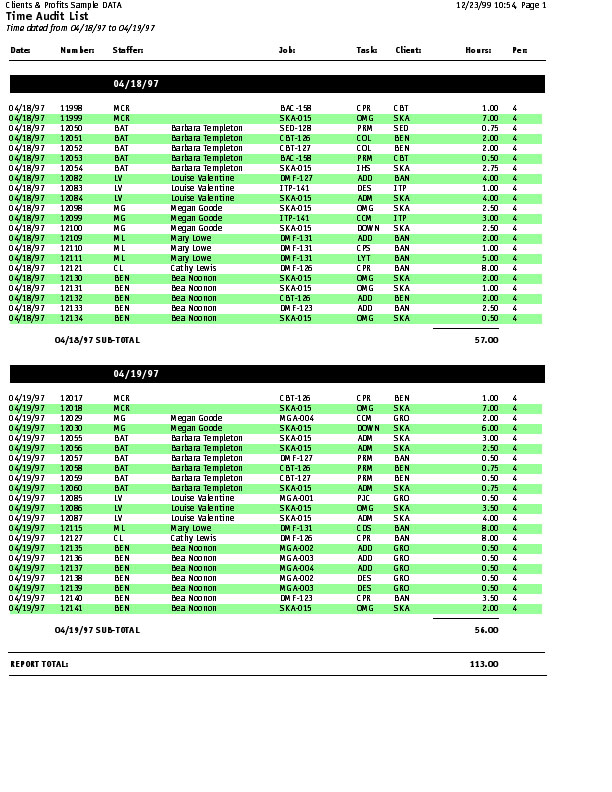
The Time Audit List shows all time entries in detail, for a select period of time, and subtotals the entries by date. This list shows which entries are marked as overtime. |
|
Unbillable Time |
The Unbillable Time report shows only those time entries marked as ‘Unbillable’. |
Summaries |
|
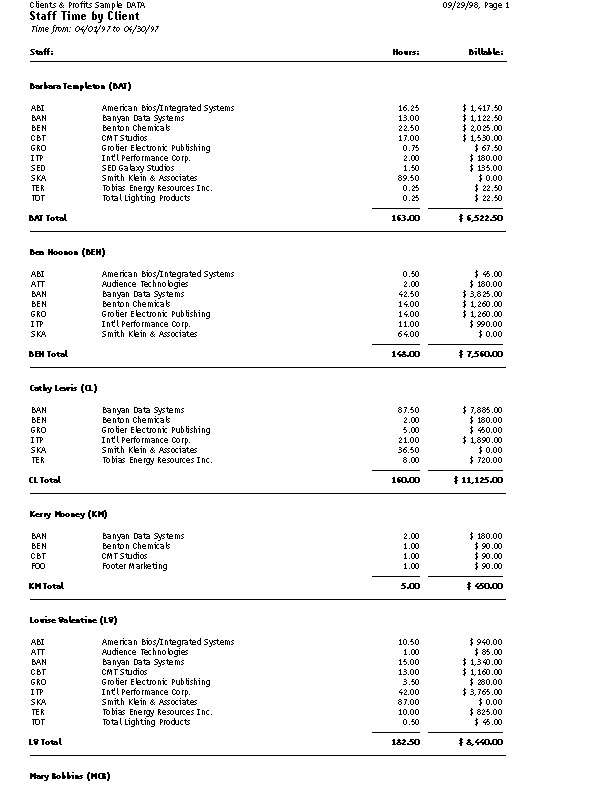
The Staff Time by Client report shows the total hours each staff member worked and summarizes their time by client. |
|
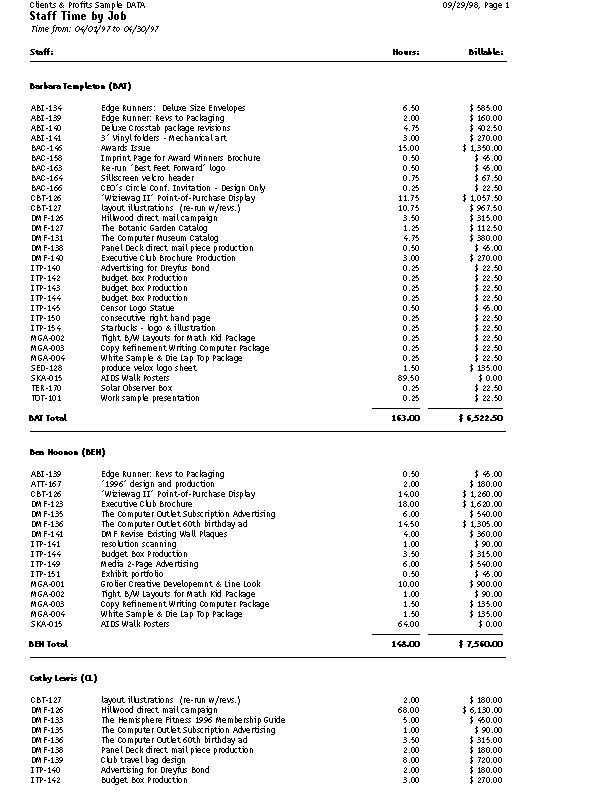
The Staff Time by Job report shows the total hours each staff member worked and summarizes their time by job. |
|
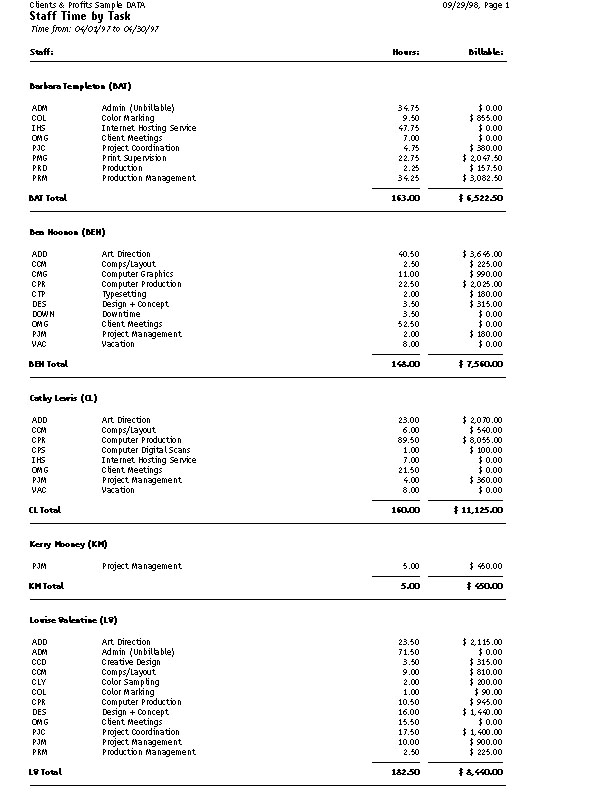
The Staff Time by Task report shows the total hours each staff member worked and summarizes their time by task. |
|
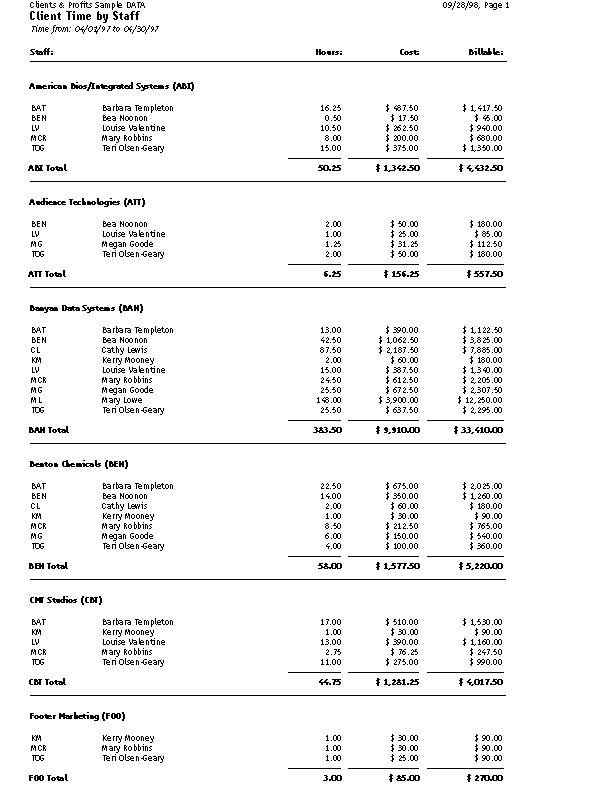
The Client Time by Staff report summarizes the total hours worked by staff for each client. |
|
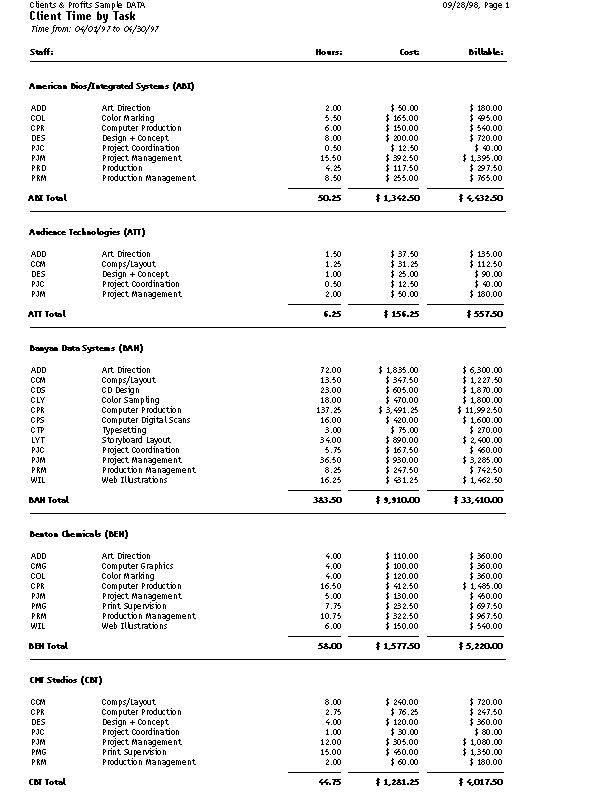
The Client Time by Task report summarizes the total hours worked by task for each client. |
|
Job Time by Staff |
The Job Time by Staff report shows the total hours worked on each job and summarizes the time by staff. |
 Comments (0)
 © 2011 Clients & Profits, Inc. w e l o v e a d v e r t i s i n g
